For optimal long-term preservation and accessibility, we **strongly recommend** submitting your thesis in **PDF/A** format rather than standard PDF. PDF/A is the ISO-standard archival format used by academic institutions worldwide to ensure documents remain readable and consistent for decades.
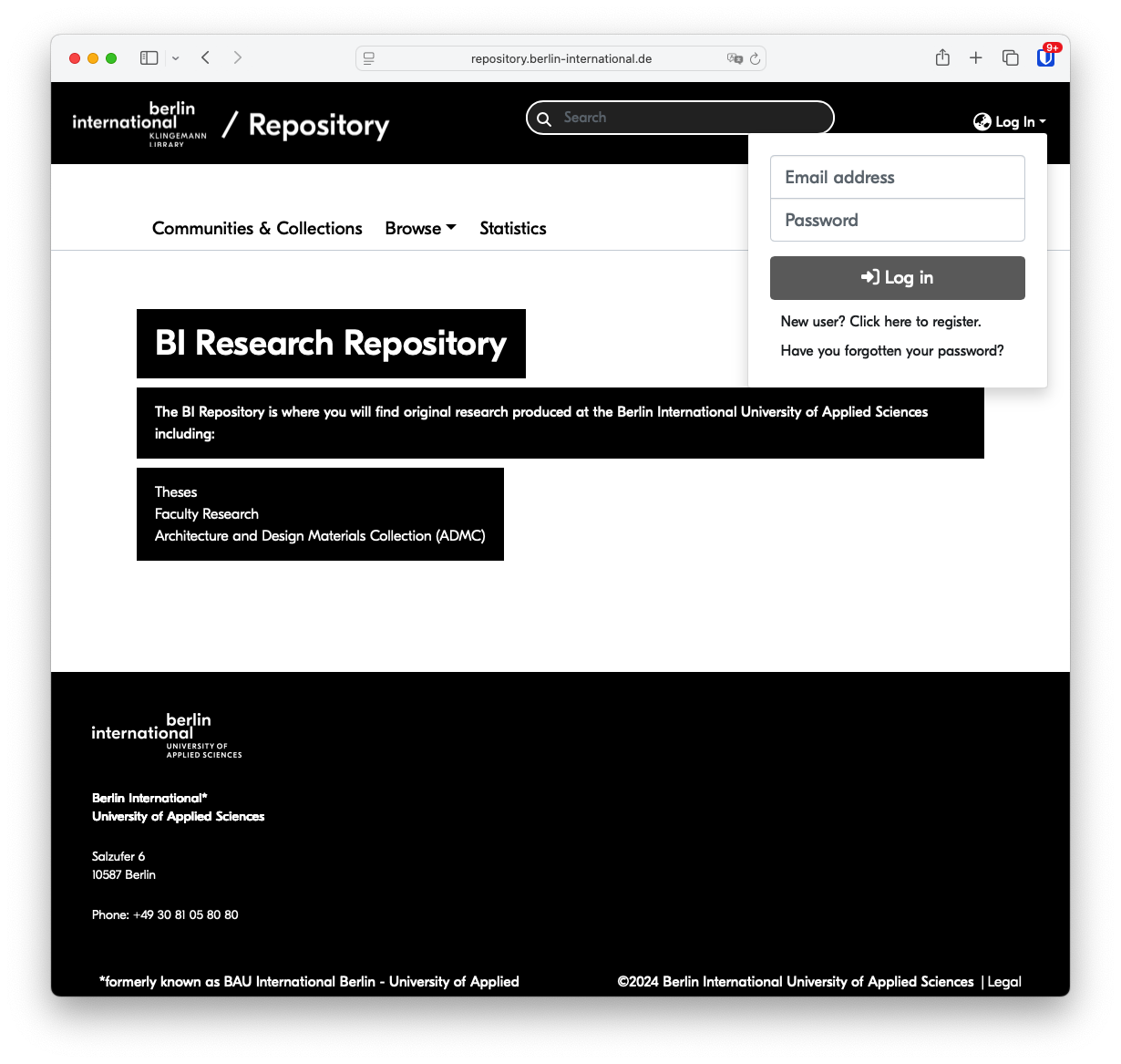
**Creating PDF/A files:** - **Adobe InDesign:** Choose File → Export → select "Adobe PDF (Print)" as format → in the Export Adobe PDF dialog, select "PDF/X-4:2008" or "PDF/A-1b:2005" from the Adobe PDF Preset dropdown (top of dialog) → click Export. Note: PDF/X-4 is also suitable for archival and widely used in professional publishing. - **Adobe Illustrator:** Choose File → Save As → select "Adobe PDF" as format → in the Save Adobe PDF dialog, choose "PDF/A-1b:2005" from the Standard dropdown menu → click Save PDF. - **Microsoft Word (Windows/Mac):** When saving, choose File → Save As → Browse → select "PDF" as file type → click "Options" → check "ISO 19005-1 compliant (PDF/A)". - **LibreOffice/OpenOffice:** Use File → Export as PDF → select "Archive PDF/A-1a (ISO 19005-1)" option in the export dialog. - **LaTeX users:** Include the `pdfx` package with `[a-2b]` option in your preamble (see [this guide](https://webpages.tuni.fi/latex/pdfa-guide.pdf) for detailed LaTeX-specific instructions). - **Online converters (privacy note):** For theses, avoid “free” ad-supported web converters; instead prefer installed desktop tools (e.g., Acrobat Pro or callas pdfaPilot) so the document never leaves your device. --- #### **Step 2 - Visit [https://repository.berlin-international.de](https://repository.berlin-international.de)** [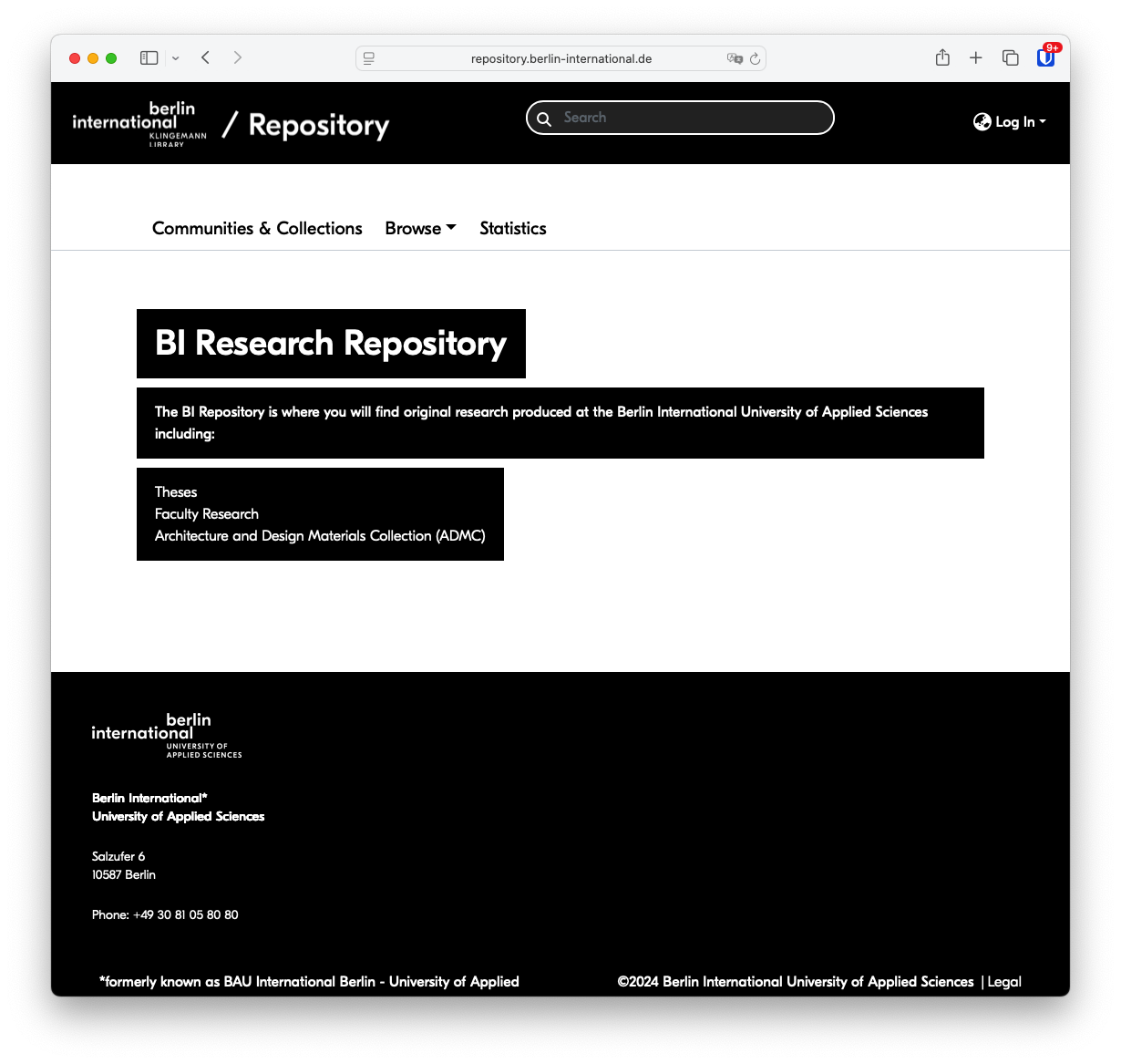](https://libguides.berlin-international.de/uploads/images/gallery/2025-09/thesis-submission-tutorial-1.png) #### **Step 3 - Log in using your BI email and email password**These credentials should be exactly the same as those you use to log into your BI email account. **Do not try to register a new account.**
[](https://libguides.berlin-international.de/uploads/images/gallery/2025-09/thesis-submission-tutorial-2.png) #### **Step 4 - Press the plus (+) button** [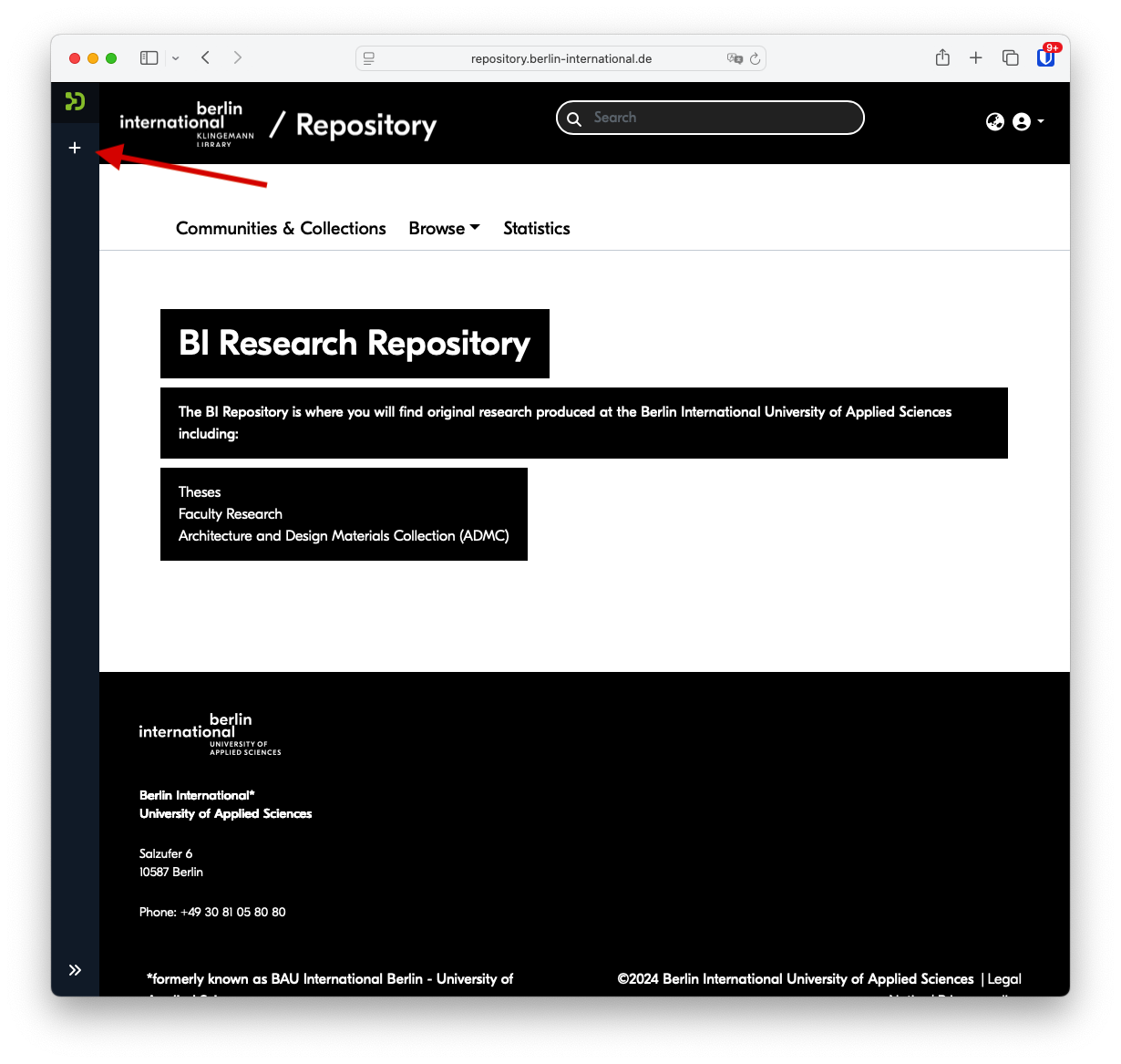](https://libguides.berlin-international.de/uploads/images/gallery/2025-09/DeVthesis-submission-tutorial-3.png) #### **Step 5 - Press the New → Item** [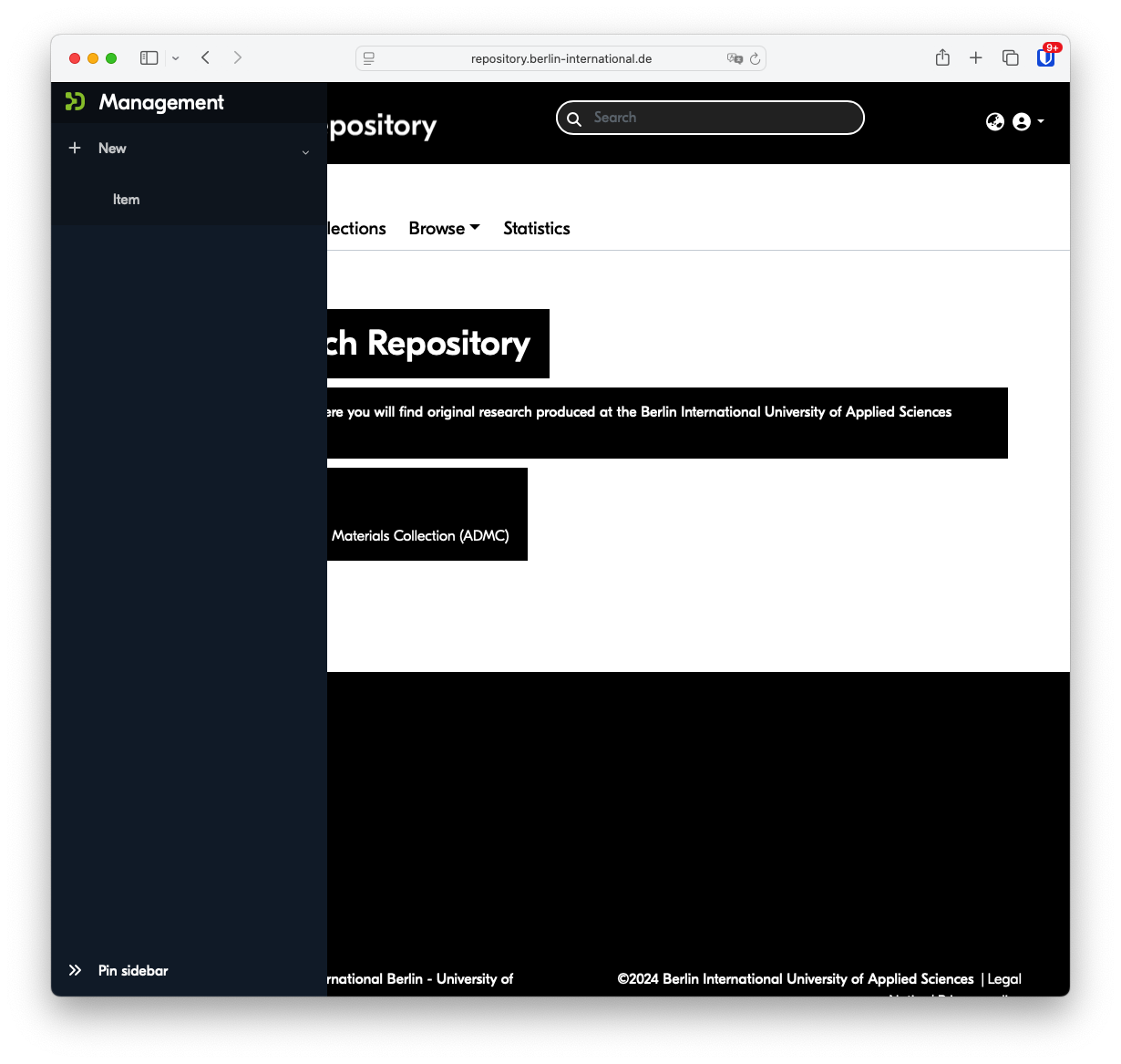](https://libguides.berlin-international.de/uploads/images/gallery/2025-09/thesis-submission-tutorial-4.png) #### **Step 6 - Select either Graduate Theses (e.g. MA or MBA) or Undergraduate Theses (all BAs)** [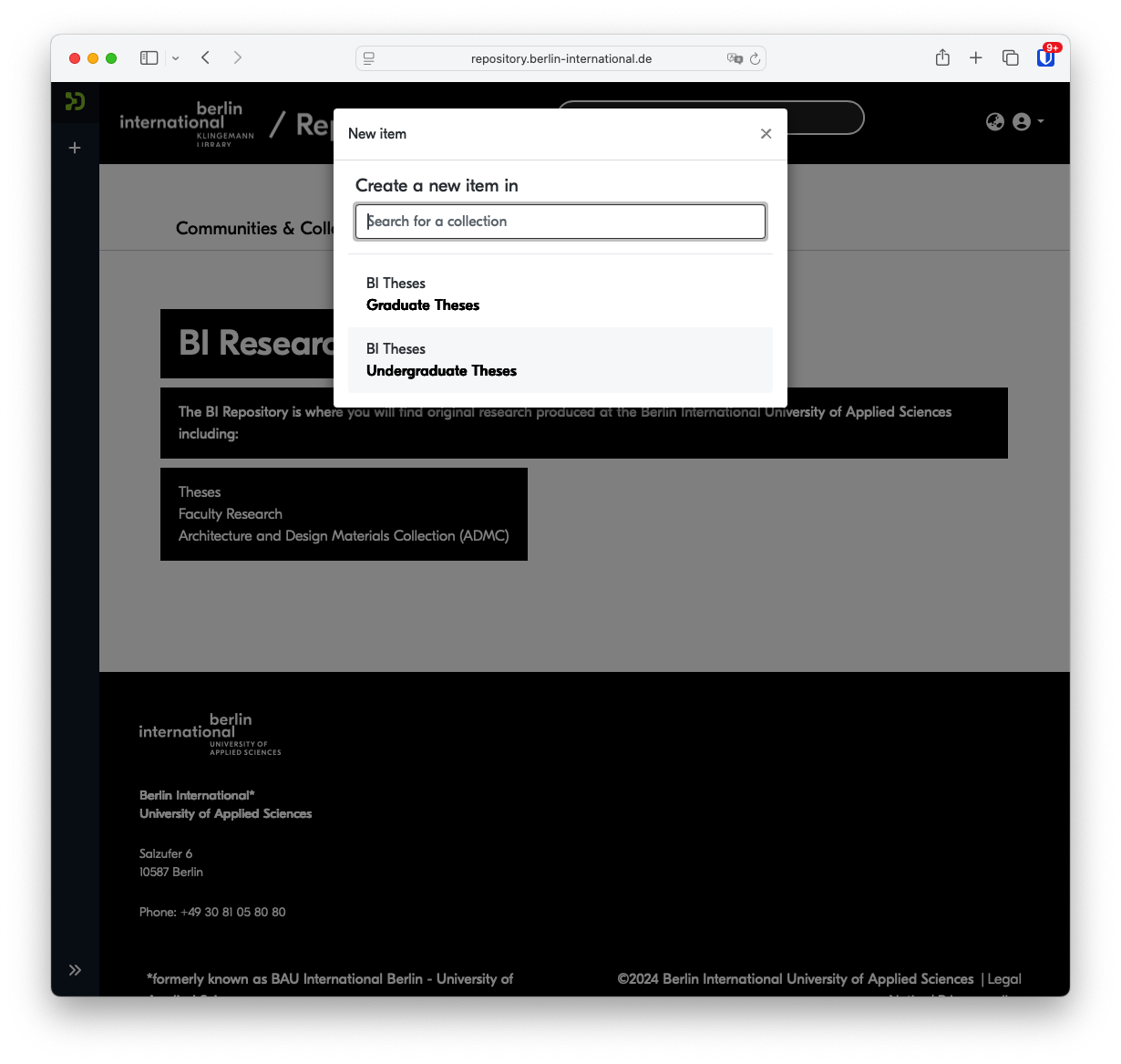](https://libguides.berlin-international.de/uploads/images/gallery/2025-09/thesis-submission-tutorial-5.png) #### **Step 7 - Either drag your PDF/A file (or standard PDF) onto the screen or press Browse to locate the file on your device** [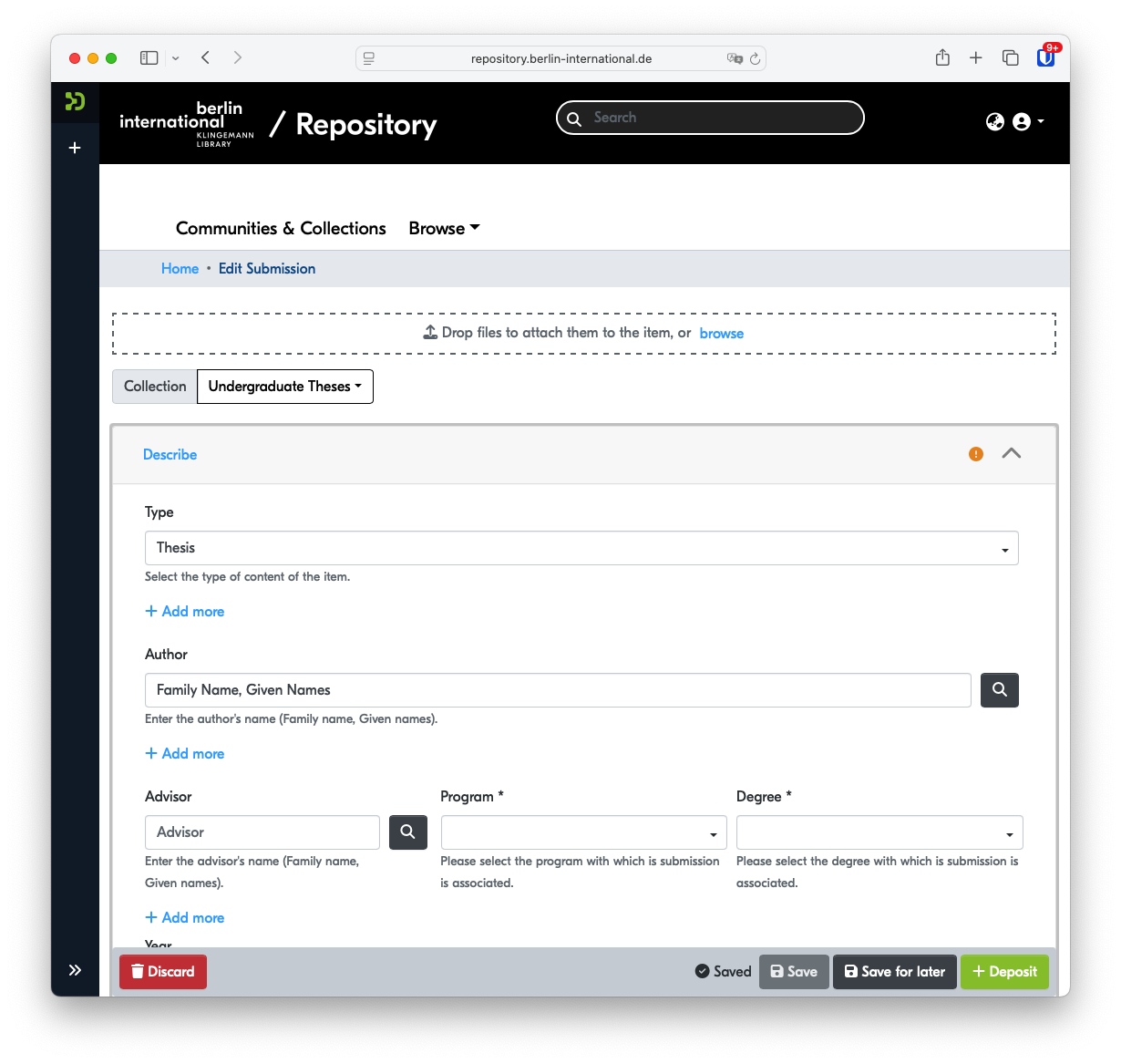](https://libguides.berlin-international.de/uploads/images/gallery/2025-09/thesis-submission-tutorial-7.png) #### **Step 8 - Fill in all applicable fields**| Type\* | Do not modify |
| Author\* | Enter your name in the format: **Family Name, Given Name(s)** |
| Advisor | Press the magnifying glass to search for your advisor. If not found, type the advisor's name in the format: **Family Name, Given Name(s)** |
| Program\* | Select your **program** |
| Degree\* | Select your **degree** |
| Year\* | Enter the **year** your thesis was submitted |
| Title\* | Enter the complete english **title** for your thesis |
| Other titles | Any additional titles, for instance translated titles included on your thesis title page, can be included here |
| Subject Keywords | Enter a maximum of **five descriptive keywords** |
| Abstract\* | Include the text of your **abstract** here. This should be the same abstract as included in your thesis. |
If you experience that the previous fields have disappeared after inputting keywords or an abstract, try reloading the page and the missing info should reappear.
#### **Step 9 - Click the box to agree to the license terms**Note that these are the same terms as submitted with your physical thesis.
[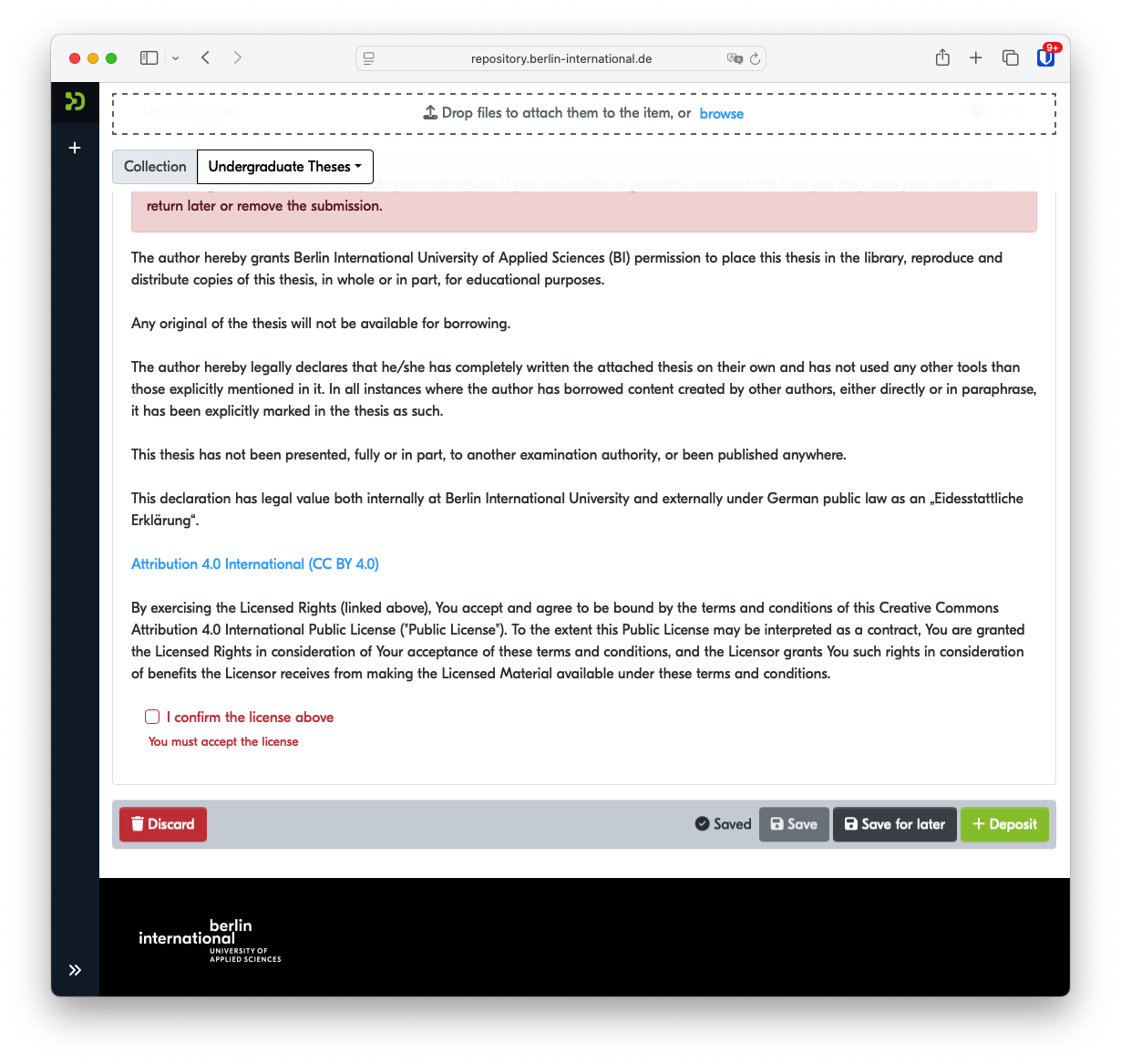](https://libguides.berlin-international.de/uploads/images/gallery/2025-09/thesis-submission-tutorial-9.png) #### **Step 10 - Click + Deposit** After submission, your thesis will be reviewed and made available after confirmation from the Examinations Office.