**This bookmarklet no longer works.** As of July 2026, BAU has moved remote-database authentication from EZProxy to OpenAthens. The bookmarklet on this page prepends the old proxy address, which has been decommissioned; **using it will not sign you in.** Please remove it from your bookmarks bar. For current instructions, see [how to access research databases using OpenAthens](https://libguides.berlin-international.de/books/faqs/page/how-to-access-research-databases-using-openathens).
## How it works If you [search BAU databases directly](https://libguides.berlin-international.de/books/journals-journal-articles/page/bau-research-databases), you are asked to provide login credentials to gain 'proxied' access to resources. In cases where you go directly to a publisher's site without having logged in ("proxied"), you will not be recognised as having access. For these cases, the EZProxy Browser Bookmarklet will allow you to log in without first going back to the BAU web site. A bookmarklet is like a browser extension but more lightweight and can be used on any browser that supports bookmarks, including mobile browsers. Once added you will see **EZProxy - BAU** in your menu bar. Click on **EZProxy - BAU** and the proxy prefix is added to the URL and the work, if BAU has access, will be accessible. *[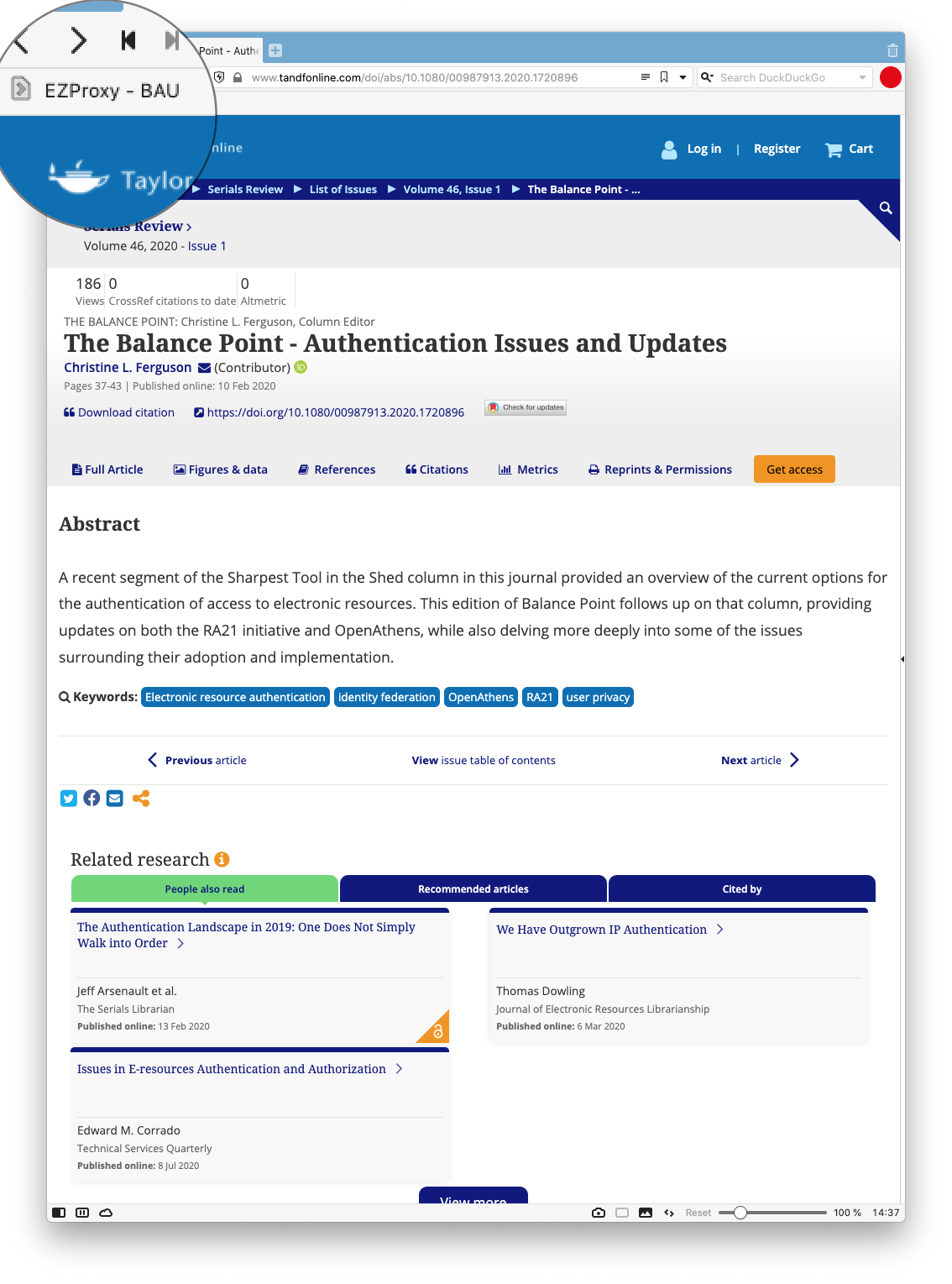](https://libguides.berlin-international.de/uploads/images/gallery/2022-03/screenshot-2022-03-14-at-14-37-05.png)* Once pressed, you will be asked for your credentials. [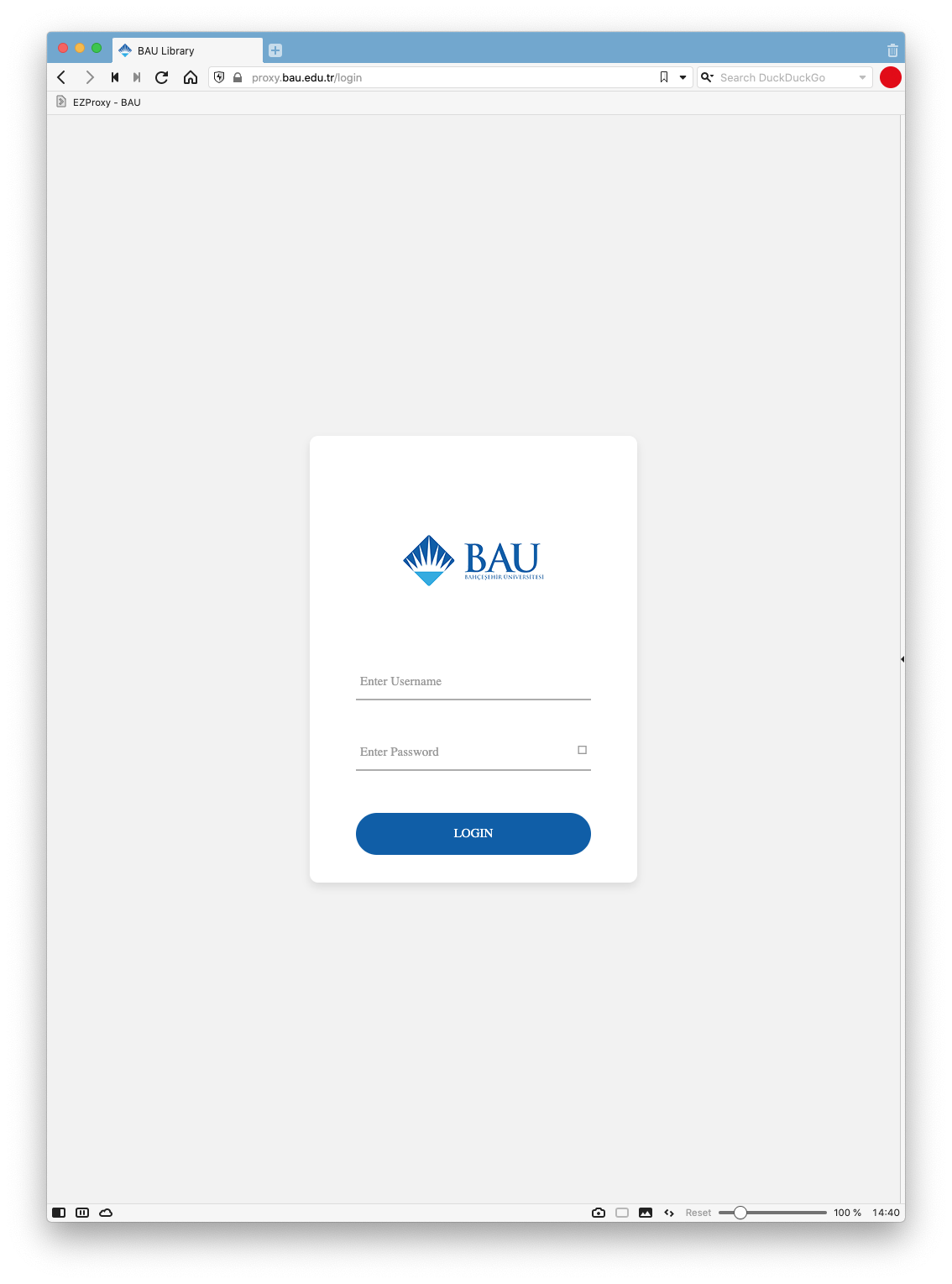](https://libguides.berlin-international.de/uploads/images/gallery/2022-03/screenshot-2022-03-14-at-14-40-21.png) After you have entered your credentials, you will have access to the full text if it is licensed by BAU. In this example, you will notice that the orange **Get Access** button in the first screenshot has now changed to a green **PDF | EPUB** button. [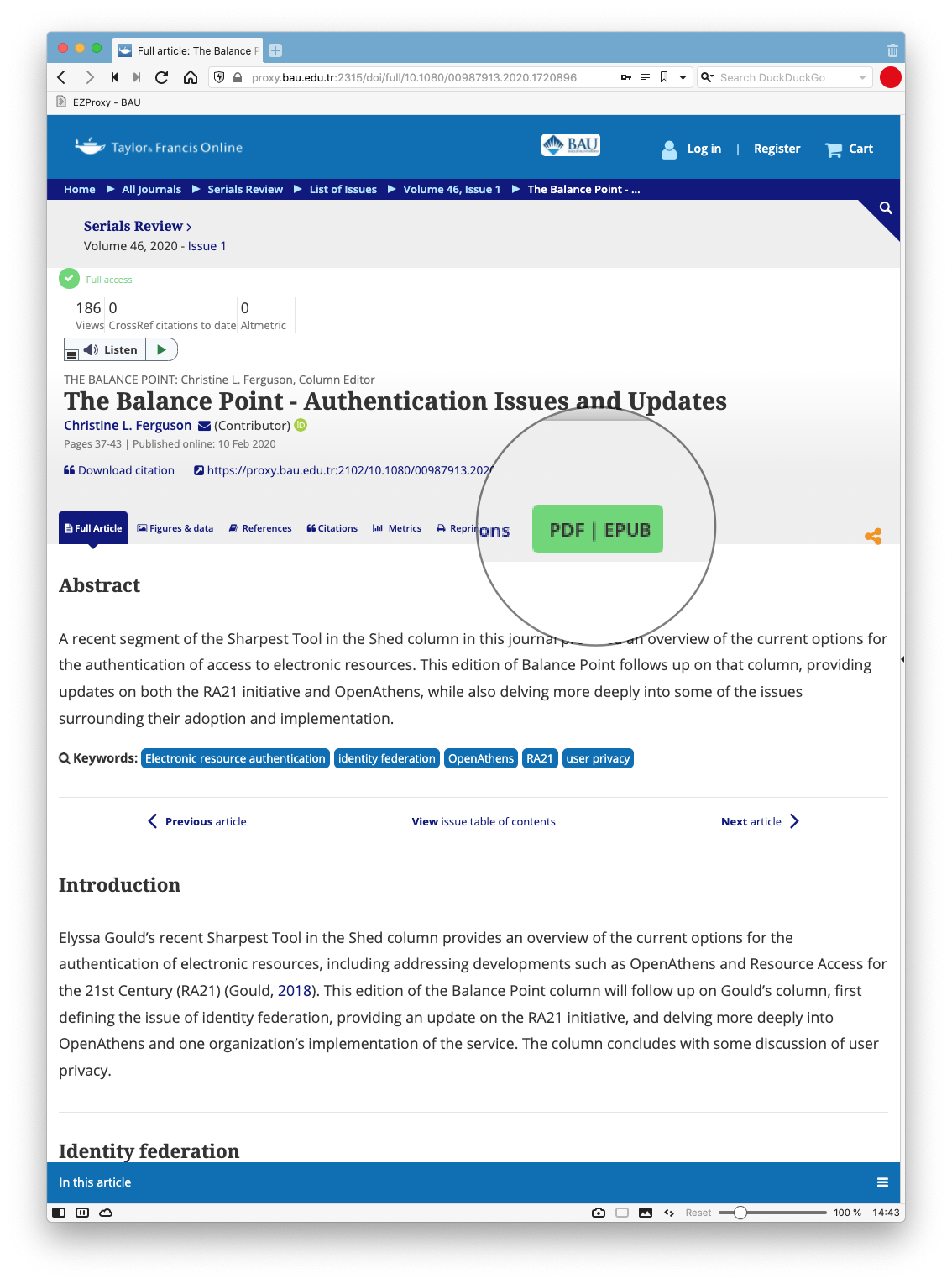](https://libguides.berlin-international.de/uploads/images/gallery/2022-03/screenshot-2022-03-14-at-14-43-53.png) ## Installing the Bookmarklet Installing the EZProxy bookmarklet varies depending on browser. In general, add the EZProxy link to an always visible Bookmarks or Favorites Toolbar, usually by dragging it into the toolbar. Below are specific instructions for some of the more common browsers. #### **Firefox[ ](https://libguides.berlin-international.de/uploads/images/gallery/2022-03/firefoxbw.png)** - From the View menu, choose "Toolbars" and "Bookmarks Toolbar" and "Always" - Right-click on the Bookmarks Toolbar and select "Add Bookmark..." with the following code as the URL: ```JavaScript javascript:void(location.href=%22http://proxy.bau.edu.tr:2048/login?url=%22+location.href) ``` #### **Chrome [](https://libguides.berlin-international.de/uploads/images/gallery/2022-03/chrombw.png)** - From the View menu, choose "Always Show Bookmarks Bar" - Right-click on the Bookmarks Bar and select "Add Page..." with the following code as the URL: ```JavaScript javascript:void(location.href=%22http://proxy.bau.edu.tr:2048/login?url=%22+location.href) ``` ### **Mobile devices** #### **Apple iOS devices [](https://libguides.berlin-international.de/uploads/images/gallery/2022-03/1024px-ios-emblem.jpeg)** - Select and copy this JavaScript code ```JavaScript javascript:void(location.href=%22http://proxy.bau.edu.tr:2048/login?url=%22+location.href) ``` - Open web browser on your device to any page and make a bookmark (it doesn't matter which one because the name and content will be edited). To make a bookmark tap the share icon on the page and choose "Add to Bookmarks". - Edit the bookmark by tapping the bookmark icon and then Edit. From the Edit view, find the bookmark you made and tap the right arrow to edit - Edit the name of the bookmark to **EZProxy - BAU** (or whatever works to describe the bookmark for you) and then paste the JavaScript code into the web address space (delete web address first). Choose Done to complete the process. - The next time you're browsing a BAU-provided resource on your mobile device off-campus, simply click or tap the **EZProxy - BAU** bookmark you created to sign in for BAU-provided access to that resource. #### **Android devices [](https://libguides.berlin-international.de/uploads/images/gallery/2022-03/android-symbol-green-rgb.png)** - Create a bookmark named **EZProxy - BAU** (or name of your choice) following all the steps described for iOS devices. - For **non-Chrome Android mobile browsers**: click or tap the Proxy bookmark you created to sign in for BAU-provided access to the resource. - for **Chrome mobile browse**r: start typing the name of the bookmark in the address bar of the browser (e.g., start typing EZProxy - BAU if that is what you named it), then select the bookmark when it appears in the drop down menu to run it.