



Creating Object Records in CollectiveAccess
Accessing Providence
CollectiveAccess has two interfaces, Providence and Pawtucket. Providence is for admin and Pawtucket is for the public. The URL for the ADMC’s Providence site is https://library.berlin-international.de/collections/admin. Once logging in, you will be able to create and edit object and entity records.
Before you begin
Checking Entity Records
Every object record must be linked to an entity record of its manufacturer. To prevent duplicate entity records from being created, first check if the manufacturer already has an entity record in the system. Follow the instructions in the "Creating Entity Records in CollectiveAccess" article for searching and creating entity records before creating an object record.
Identifier
The format for object identifiers is YYYY.2.NNN. The unique identifier for a new object record is determined by the highest existing identifier for the current year in CA.
Finding the highest existing identifier:
- Go to Find in the menu, then click Objects in the dropdown. This will take you to the Basic Search for all object records in CA.
-
In the list view of all object records, there will be a column titled Object identifier. Click on the title to sort the records by their identifier. Higher identifiers will be at the top of the list.
- Once you have determined what the highest existing identifier in use is, use the next number in the sequence for the new object record. For example, if the highest existing identifier is 2026.2.15, the next identifier will be 2026.2.16.
Accessing the object record editor
To create a new object record in the system, go to New, then Object in the dropdown. Choose the object type that best fits the item you are cataloging.
Object types
For the ADMC there are three different object types: Physical Sample, Publication and Sample with Publication. To decide which object type applies to the item you are cataloging, assess it based on these criteria:
- Physical Sample - a physical object, often a product sample, that does not have an associated publication in the collection.
- Publication - a product catalogue or similar publication that does not have an associated physical object in the collection.
- Sample with Publication - an item that includes both a physical object and an associated item catalogue or similar publication, often housed in the same container.
Once you have chosen one of these object types, a new object record will be created.
Required fields
Every object record must include the following field before it can be saved:
- Identifier
- Title (preferred label) - from the manufacturer or a descriptive title of the object. When creating a title, make sure that it will be clear for patrons when searching or browsing the collection to know what the object is without looking at additional metadata fields. Titles should not have too little or too much information.
Recommended fields
These fields are not required for a record to be saved, but should be filled out if available as they contain important information related to workflow management, public accessibility and specifics for the ADMC:
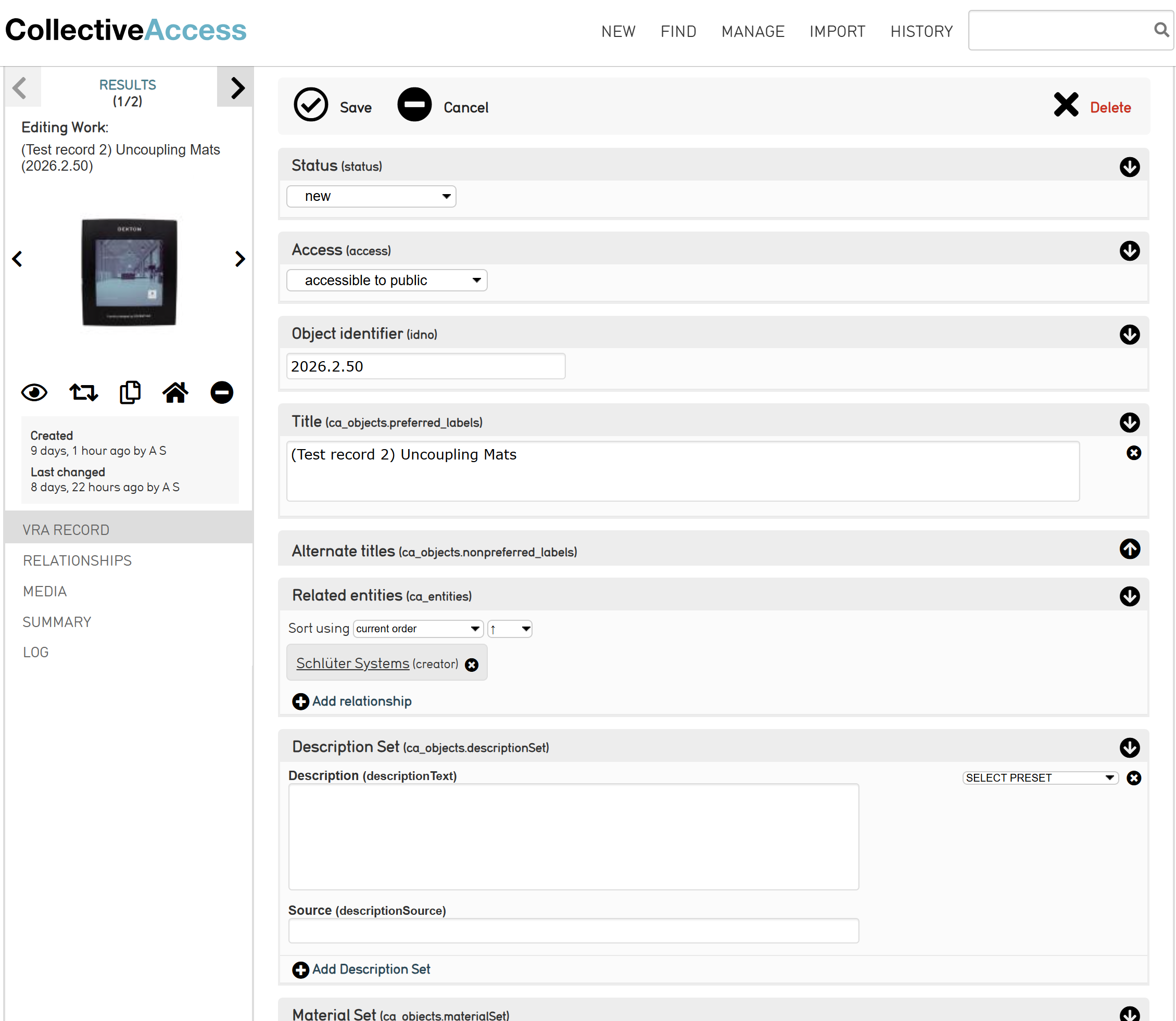
- Status - tracks the completion status of the object record. When creating a new record, leave the status as “new.” When done editing, change the status to “editing complete.”
- Access - determines the access status of the record. Options are “accessible to public,” “not accessible to public” and “restricted public access.” If the object is intended to be visible to the public, choose the “accessible to public” status when editing is complete.
- Material type - records the material that the object is made out of. Choose the
termtype(s) from the authority list. - Application - records the intended usage of the object. Choose the
applicationapplication(s) from the authority list. - Material properties - descriptive terms for the object. Check
whichthe propertiesare related to the objectfrom the list. - Use Context - records the intended context for the object. Options are exterior, interior or both.
- Storage location - links to the object’s position on the shelf.
- Related entities - links to the manufacturer's entity record. Use the search bar in this field to find the entity and choose from the authority list to create the relationship between the two records.
Getty Art & Architecture Thesaurus - records related subject terms for the object. Use the search bar in the field and choose terms from the authority list.- Description - additional information about the object, which is relevant for the public. This can include the manufacturer's description of an object, material specifics, etc. This field will be accessible to the public.
- Notes - other information related to the object, which is not a full description of the object. This can include folder or box numbers. This field will be accessible to the public.
- Internal Notes - used for questions or comments about information in the record while editing. This can include questions over the title, description, etc. This field is not accessible to the public.
Saving and checking
Once you are done editing the object record, save the record by clicking the save button at the top or bottom of the record.
If the object is intended to be accessible to the public, verify that the object shows up correctly in Pawtucket. Go to https://library.berlin-international.de/collections. Find the object using the search bar, Browse or Advanced Search on the menu. Once found, ensure that the public can view the object, its title, identifieridentifier, related entity and any relatedrelevant entities.fields.
Images
If the item you are cataloging has images associated with it, these images can be attached to the object record:
- Before any images can be uploaded, the object record must first be created and saved.
- You will then have access to the Media tab on the left-hand column of the object record editor.
- From here you can upload images to the object record.
- To add more than one image, click on “Add representation” at the bottom of the field.
- To ensure that the images will be visible to the public, you must change the access field for each image to “accessible to public.”
-
Save changes.
Once images have been uploaded and processed in CA, you can change which image is primary, meaning which image will appear first in the object’s image carousel in Pawtucket:
- Under the Media tab, you will find a right-hand column next to the different media representation files.
- Click “Make primary” from the column on the image you wish to change.
-
Under the image you clicked, it will be noted that the chosen image “Will be primary after save.”
- Save changes.
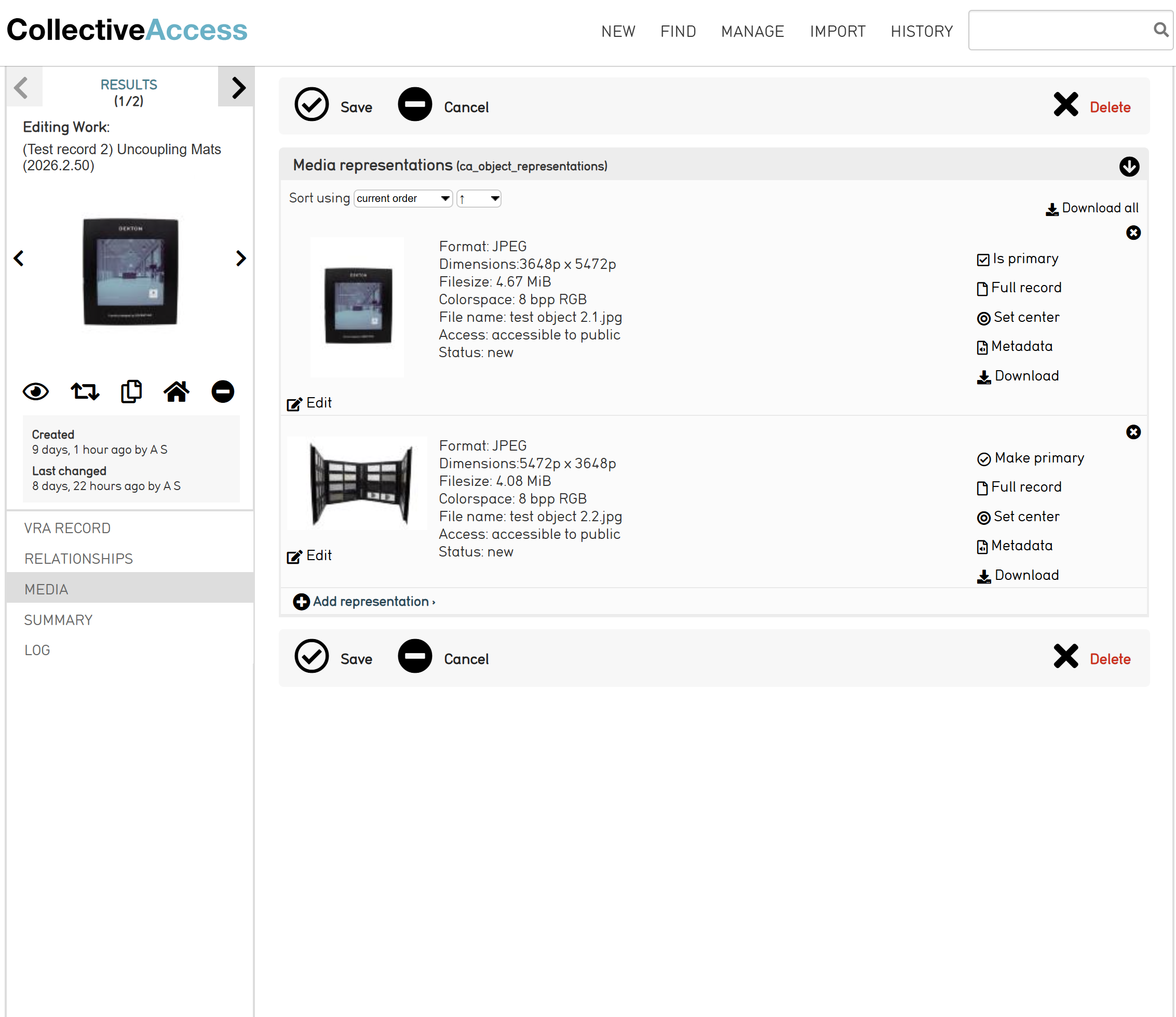
Once images are uploaded and saved to the object record, check on Pawtucket to ensure that the images are visible to the public.public in the intended order.
Common Mistakes
Follow the directions above as you create a new record to prevent the most common mistakes:
- Not searching for an entity record before creating a new one, causing a duplicate record to be made.
- Not switching the access setting for an object record and its associated images to public once an object is ready for public view.